DAO commons
For a community that launches as a DAO with a treasury.
On this page
Deploying soonSet it up now without Floor bid and A reward token made in the app, for Swap Reward Mint, which are deploying soon. Runs on live blocks. Floor bid is deploying soon.
Royalty and tax fund contributors and the treasury on terms fixed at launch, and the treasury backs the market in public view.
Why it is different. The payouts a DAO would otherwise vote on again and again are fixed at launch and readable on chain.
The pools
Launch · split 50/30/10/10 · locked 100,000 blocks · royalty split
- ETHtick spacing 60
Royalty to up to eight payees
- Live:Anti-Snipe
- Live:Dynamic fees
- Live:Auto Burn
- Live:LP Rewards
- Live:Creator royalty
- Live:Arb recapture
- Live:King of the Pool
- USDGtick spacing 10
Tax to the DAO treasury
- Live:Dynamic fees
- Live:LP Rewards
- Live:Arb recapture
- Live:Tax + Conversionadvisory
- HOOKRtick spacing 200
Governance points
- Live:LP Rewards
- Live:Arb recapture
- Live:Swap Reward Mintadvisory
- WTHtick spacing 100
Desk: a capped surcharge
- Live:LP Rewards
- Live:Arb recapture
- Live:Managed feeadvisory
How the pools work together
- Royalty pays up to eight payees fixed at launch, such as contributors and a grants fund.
- Fee Bridge named as one of those payees, would pass a share of the royalty, in ETH, to the ETH pool's in-range LPs. Proposed
- Tax funds the treasury, which funds the pools' Recovery reserve in public view and can ask Hookr for a Floor bid.
- Liquidity Ladder would move DAO-owned positions between the pools on a schedule voted before launch. Proposed
Beside the pools and at launch
- Live:Revenue Router
- Live:Liquidity lock
- Live:Vesting Milestone
- Live:Recovery reserve
- Deploying soon:Floor bidDeploying soon
Proposed connectors
- Proposed:Fee Bridge
- Proposed:Liquidity Ladder
Walkthrough
Every section of the launch floor this combo uses, in order, with what to check, select and fill in each.
Full walkthrough: Launch 1: CMNS
The link leaves Creator royalty off on pool 1. Connect your wallet, then turn it on.
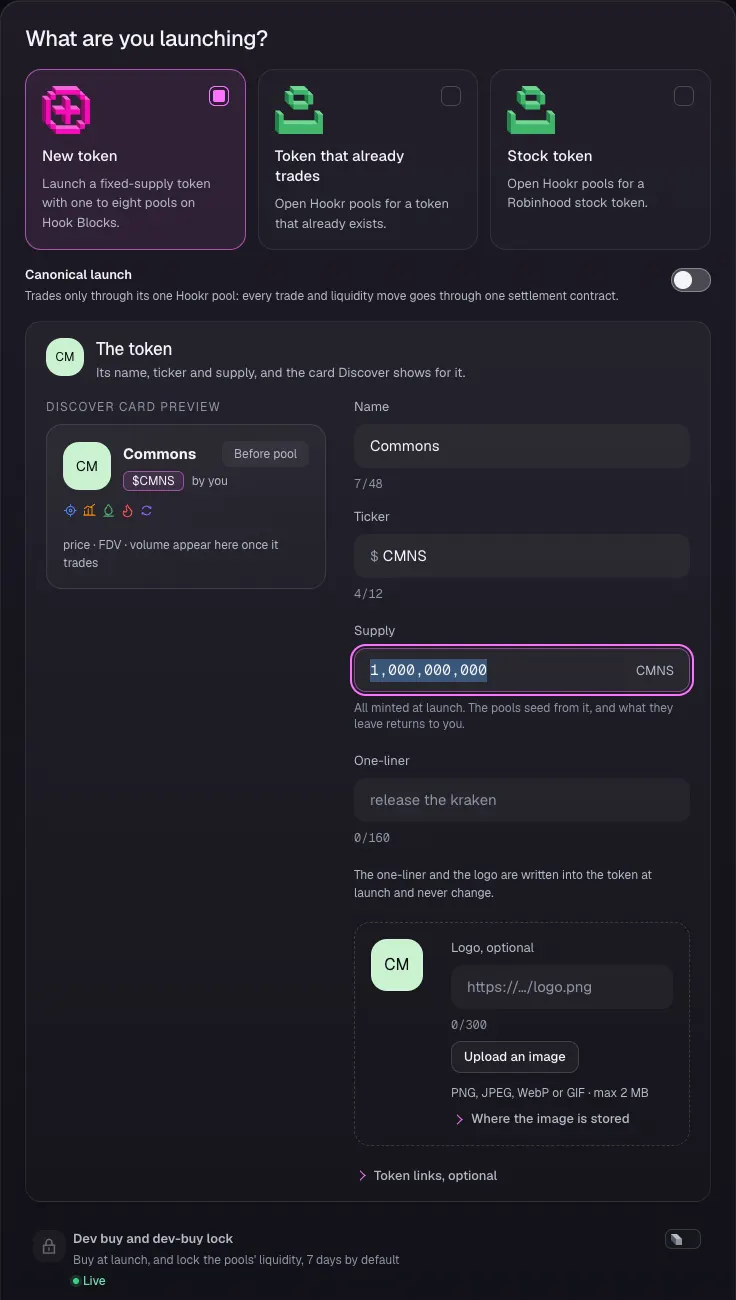
Open the launch page and name the token
- Open the launch page at hookr.fun/launch and keep New token selected.
- Type a name in Name and a ticker in Ticker. This example uses Commons and CMNS.
- Leave Supply at 1,000,000,000 and Dev buy and dev-buy lock off.
- Click Continue.
Add the pools and open pool 1 on ETH
- In 2 Pools, click Add another pool three times. Pools 2 and 3 open on USDG and HOOKR.
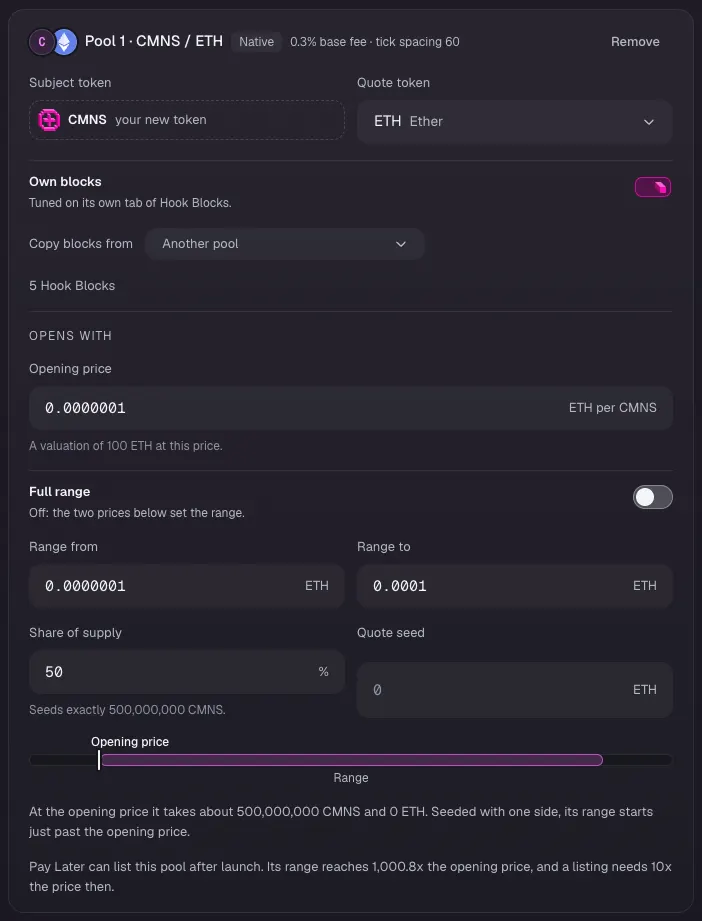
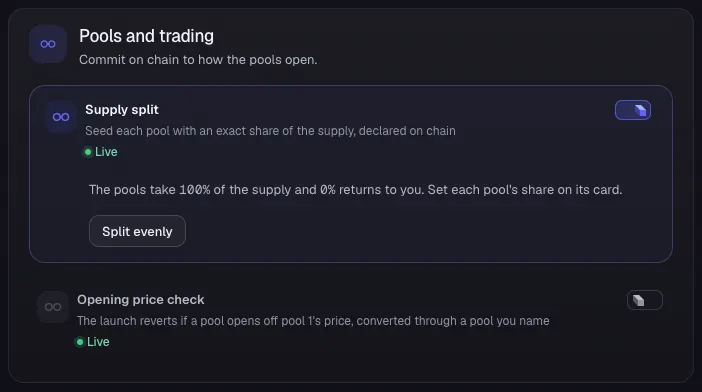
- Under Pools and trading, turn on Supply split.
- On Pool 1 · CMNS / ETH, type 50 in Share of supply.
- Type the Opening price in ETH per CMNS and leave Full range off. This example uses 0.0000001, with Range from 0.0000001 and Range to 0.0001.
Open pool 2 on USDG
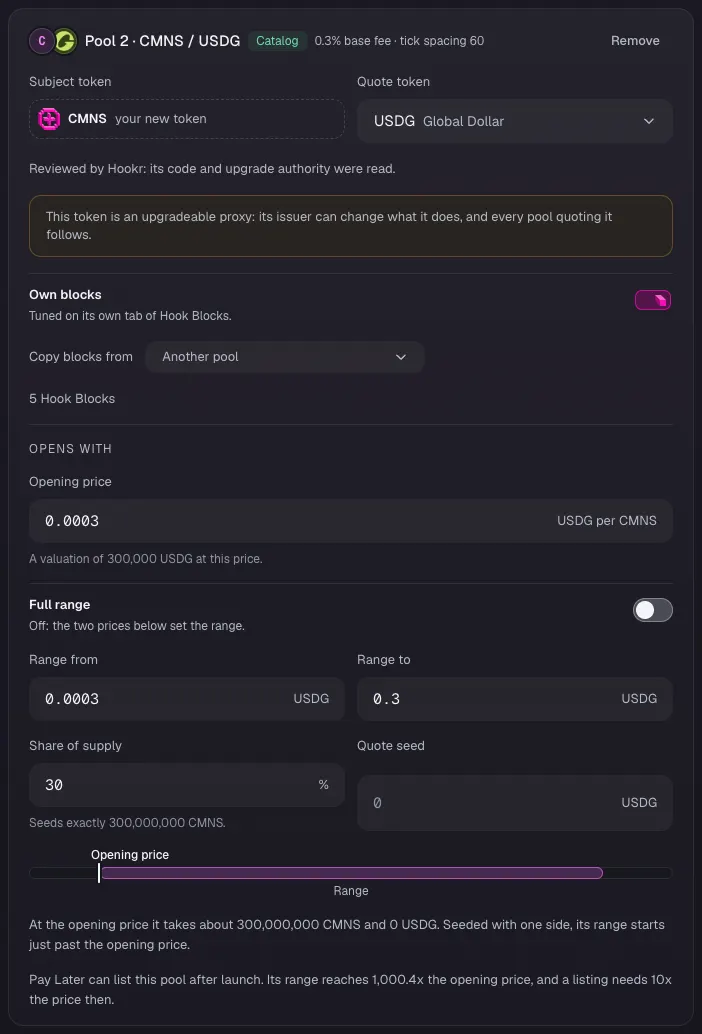
- On Pool 2 · CMNS / USDG, type 30 in Share of supply.
- Type the Opening price and the range. This example uses 0.0003, from 0.0003 to 0.3.
- Leave Quote seed empty. Tick spacing is set later under Hook Blocks.
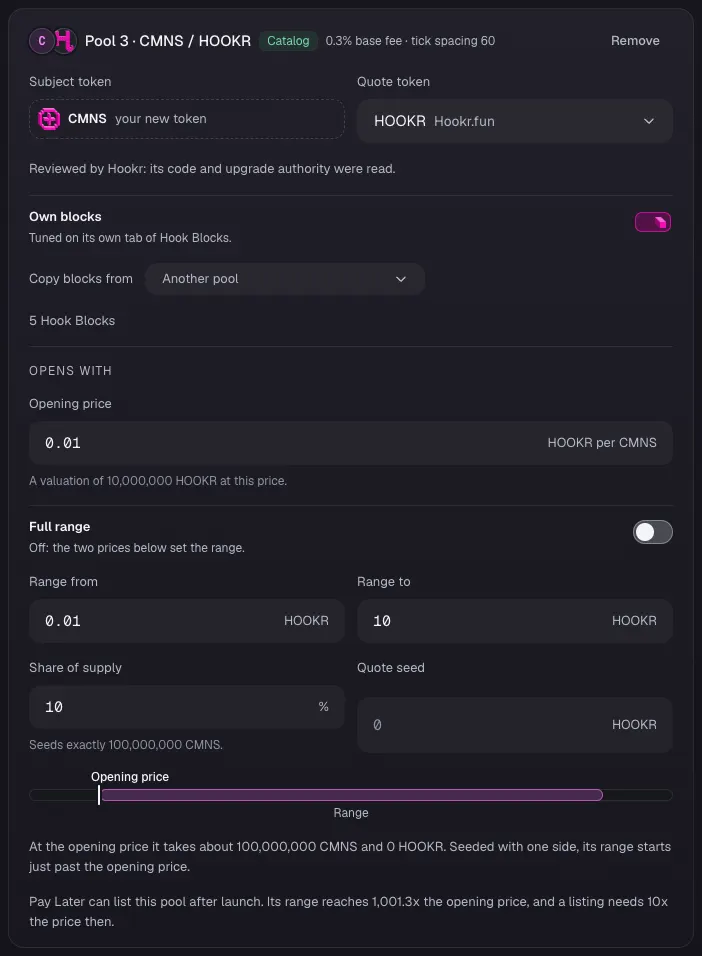
Open pool 3 on HOOKR
- On Pool 3 · CMNS / HOOKR, type 10 in Share of supply.
- Type the Opening price and the range. This example uses 0.01, from 0.01 to 10.
Open pool 4 on WTH
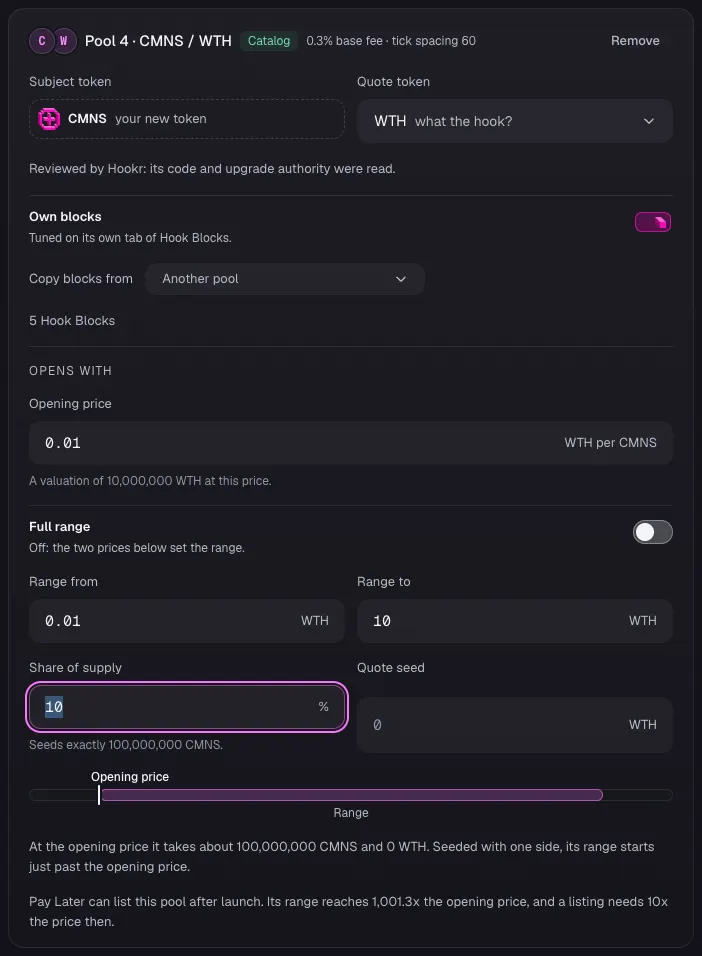
- On Pool 4, open Quote token, type WTH in the search and pick WTH.
- Type 10 in Share of supply.
- Type the Opening price and the range. This example uses 0.01, from 0.01 to 10.
Check the supply split
- Check that Supply split is on and the pools take 100% of the supply.
- Leave Opening price check off.
- Click Continue.
Check pool 1's Hook Blocks
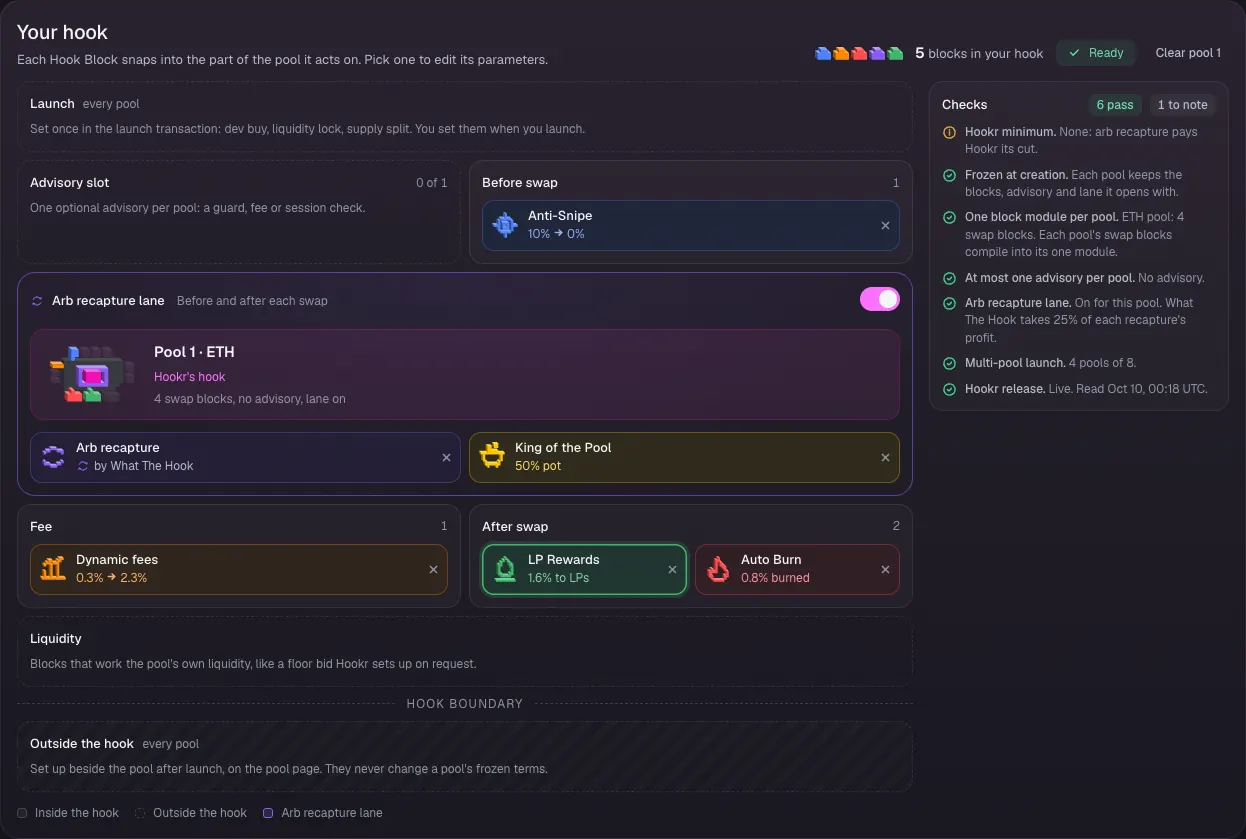
- In 3 Hook Blocks, click the Pool 1 · CMNS / ETH tab.
- Check that Your hook shows Anti-Snipe, Dynamic fees, Auto Burn, LP Rewards and Arb recapture with King of the Pool, and the Advisory slot empty (0 of 1).
Turn on the creator royalty
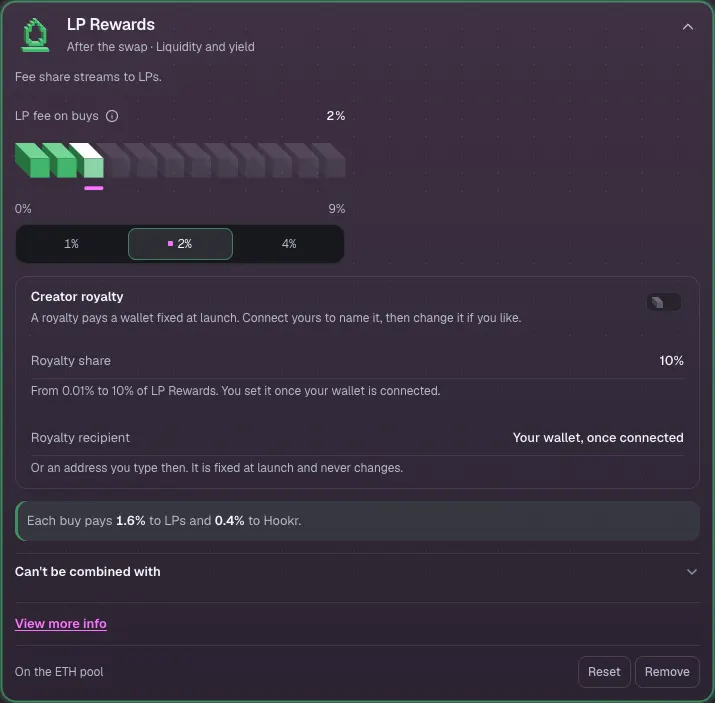
- Click LP Rewards to open its settings.
- Connect your wallet, then turn on Creator royalty. The switch stays off until a wallet is connected, so this walkthrough stops here for the royalty.
- With Revenue Router on, each pool's royalty is paid to the split you set under Team and income.
Check King of the Pool
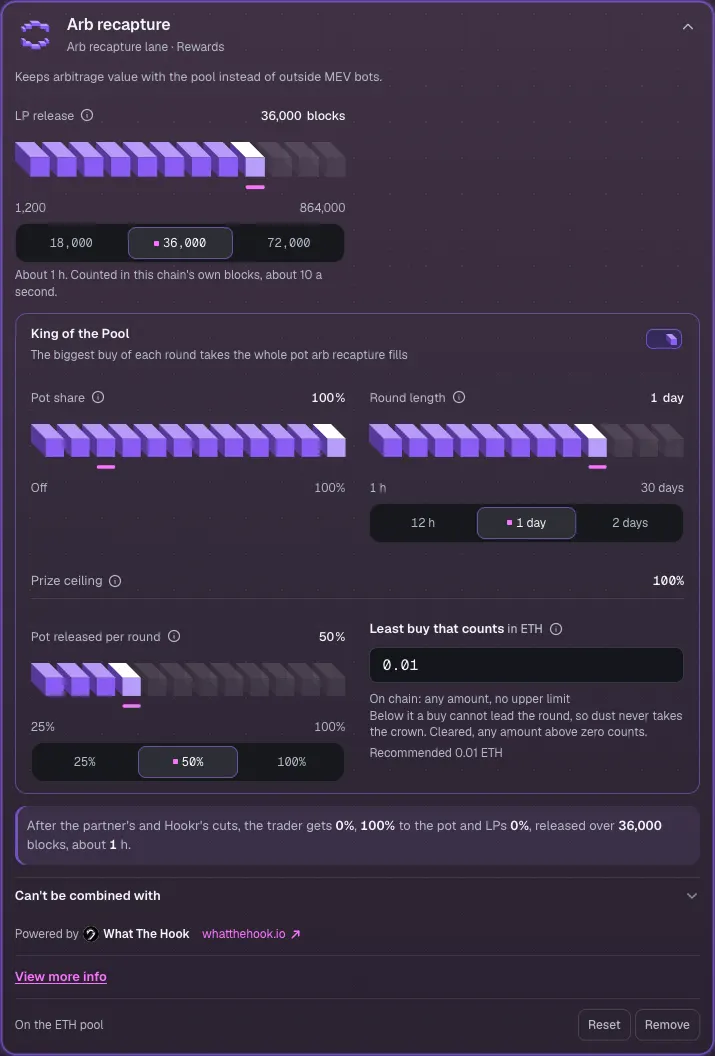
- Click Arb recapture to open its settings.
- Check that King of the Pool is on with Pot share 100%, Round length 1 day, Pot released per round 50% and Least buy that counts 0.01 ETH.
Set up pool 2 on USDG
- Click the Pool 2 · CMNS / USDG tab.
- Remove Anti-Snipe and Auto Burn with the × on each block.
- Click Arb recapture and turn King of the Pool off.
- In Every Hook Block, click Tax + Conversion so it takes the Advisory slot.
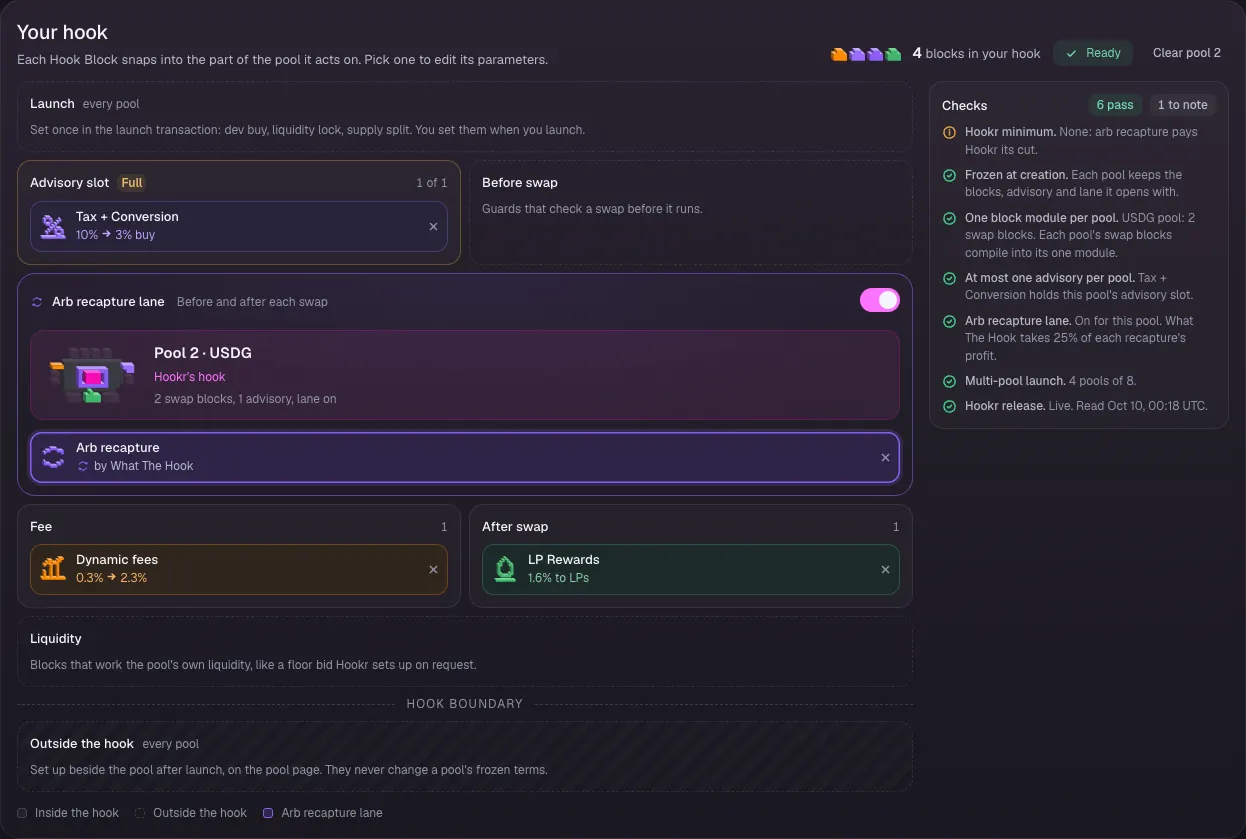
- Check that Your hook shows Dynamic fees, LP Rewards and Arb recapture, with Tax + Conversion in the Advisory slot (1 of 1).
Set pool 2's tick spacing
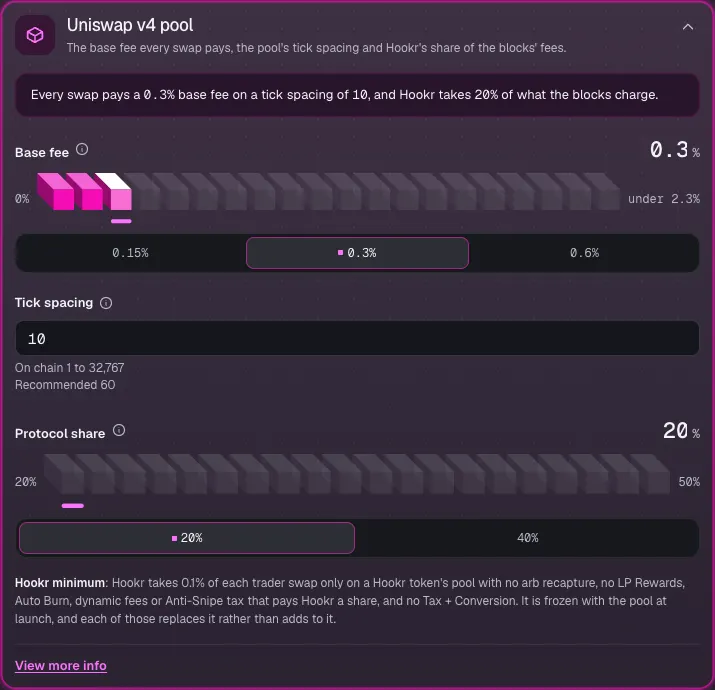
- Click Pool terms and type 10 in Tick spacing.
Send the tax to the treasury
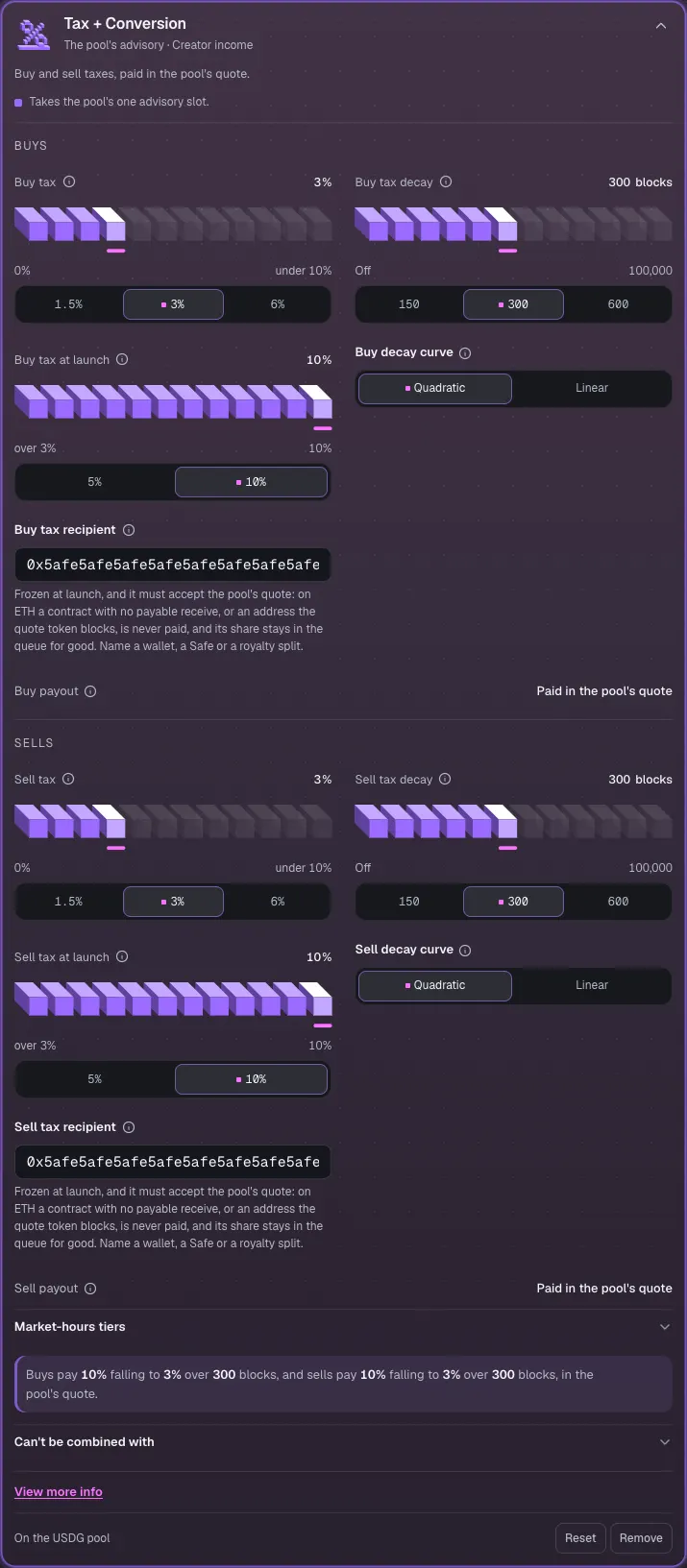
- Click Tax + Conversion to open its settings.
- Type the DAO treasury's address in Buy tax recipient and Sell tax recipient. This example shows 0x5afe…5afe.
- Keep Buy tax and Sell tax at 3%, starting at 10% and falling over 300 blocks, or set your own.
Set up pool 3 on HOOKR
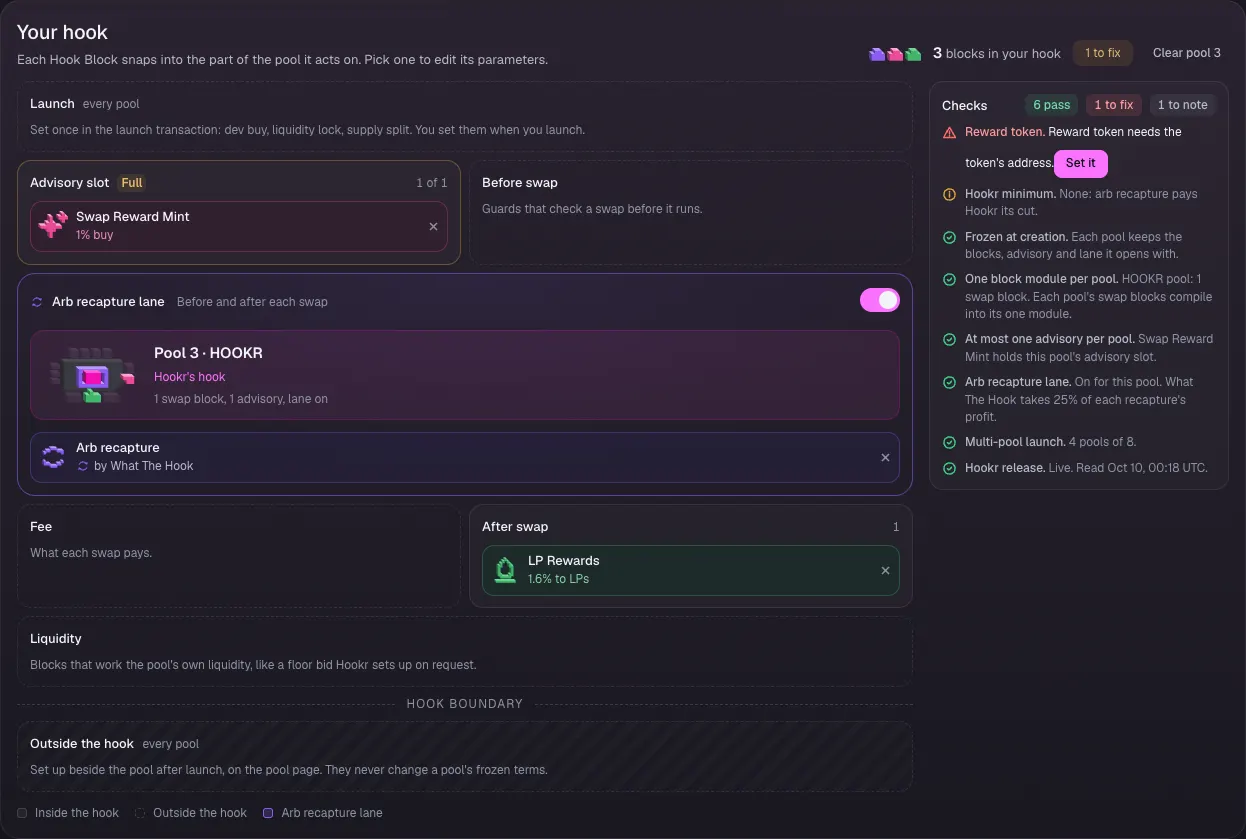
- Click the Pool 3 · CMNS / HOOKR tab.
- Remove Anti-Snipe, Dynamic fees and Auto Burn with the × on each block.
- Click Arb recapture and turn King of the Pool off.
- In Every Hook Block, click Swap Reward Mint so it takes the Advisory slot.
Set pool 3's tick spacing
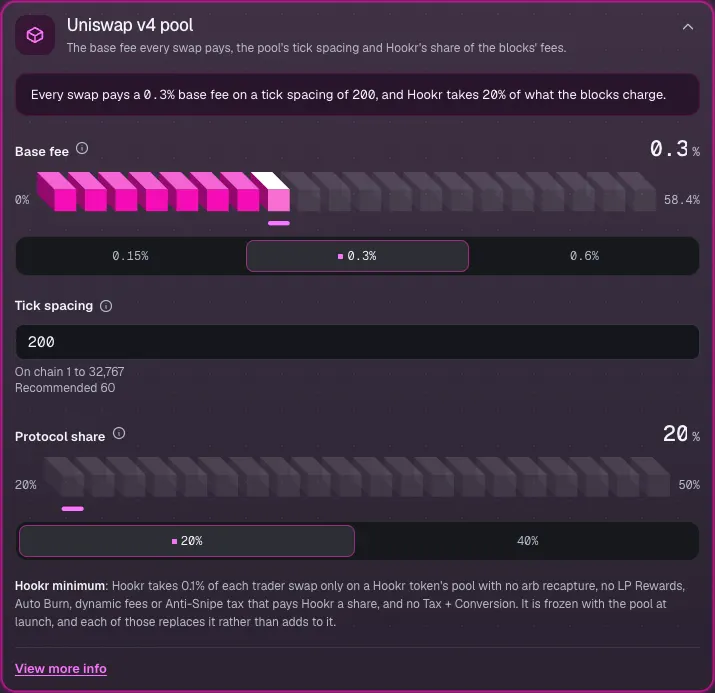
- Click Pool terms and type 200 in Tick spacing.
Set up governance points
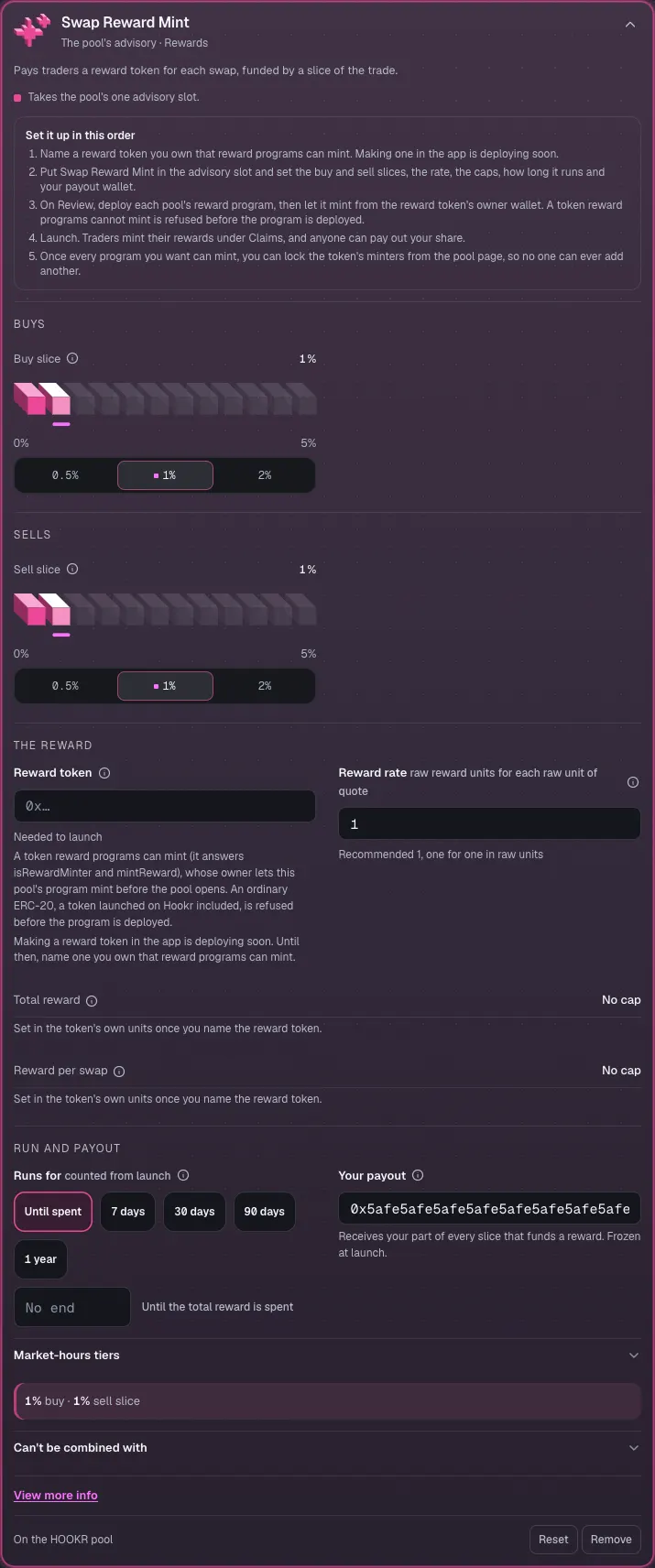
- Click Swap Reward Mint to open its settings.
- Paste a reward token you own that reward programs can mint into Reward token. An ordinary token such as HOOKR is refused before the program is deployed, and making one in the app is deploying soon.
- Type the treasury's address in Your payout. This example shows 0x5afe…5afe.
Set up pool 4 on WTH
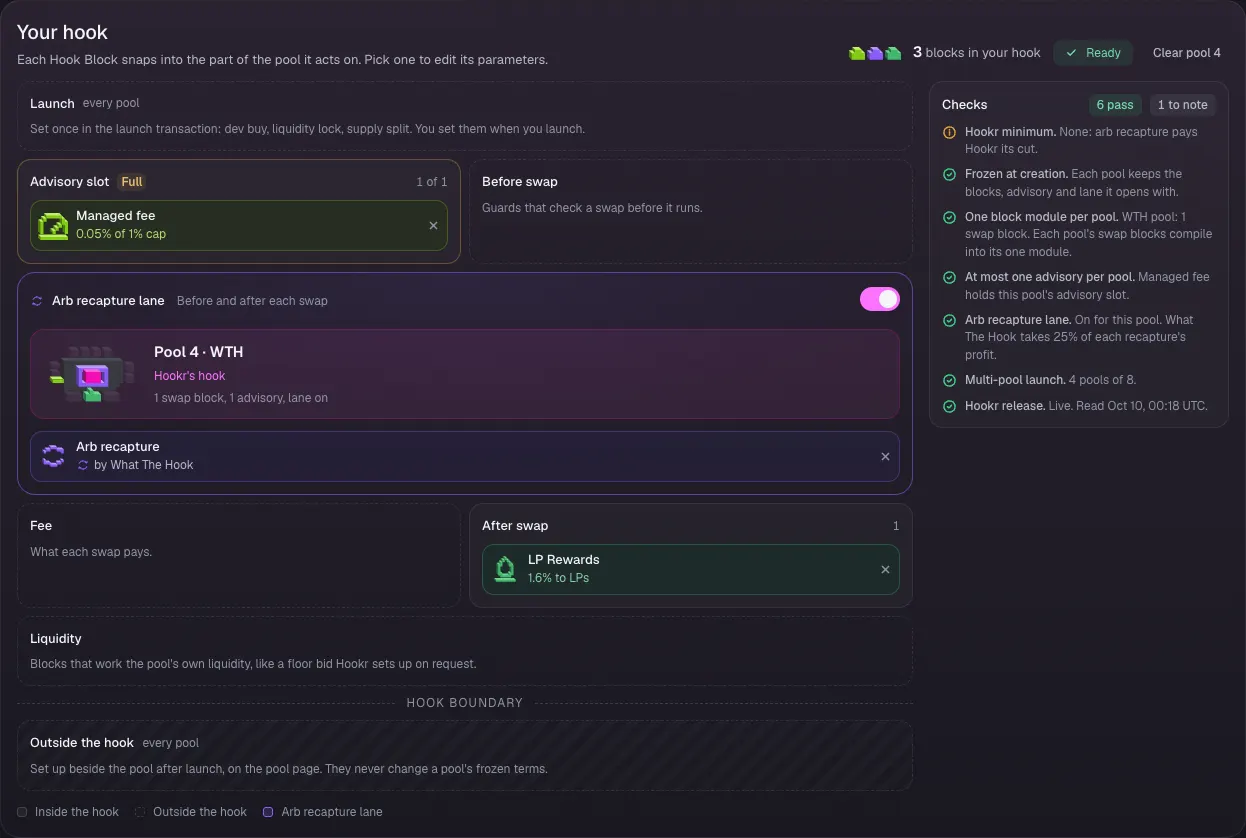
- Click the Pool 4 · CMNS / WTH tab.
- Remove Anti-Snipe, Dynamic fees and Auto Burn with the × on each block.
- Click Arb recapture and turn King of the Pool off.
- In Every Hook Block, click Managed fee so it takes the Advisory slot.
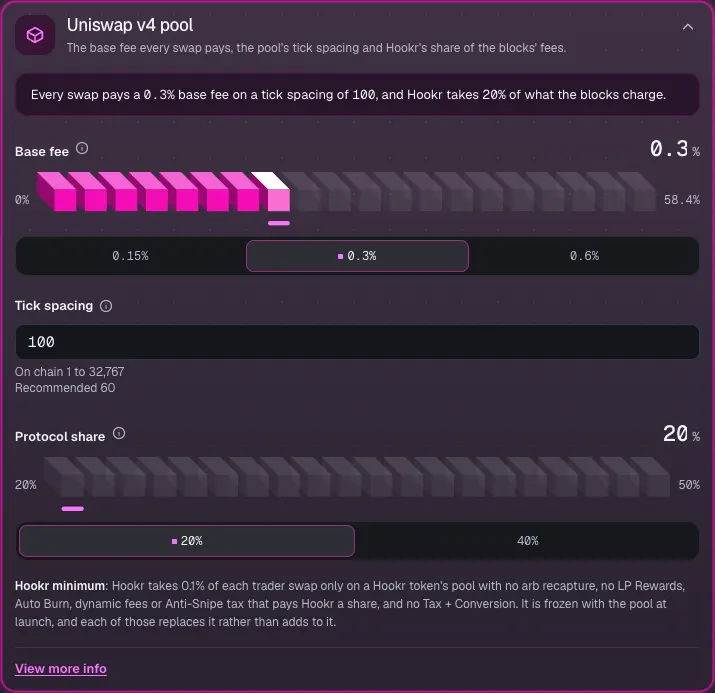
Set pool 4's tick spacing
- Click Pool terms and type 100 in Tick spacing.
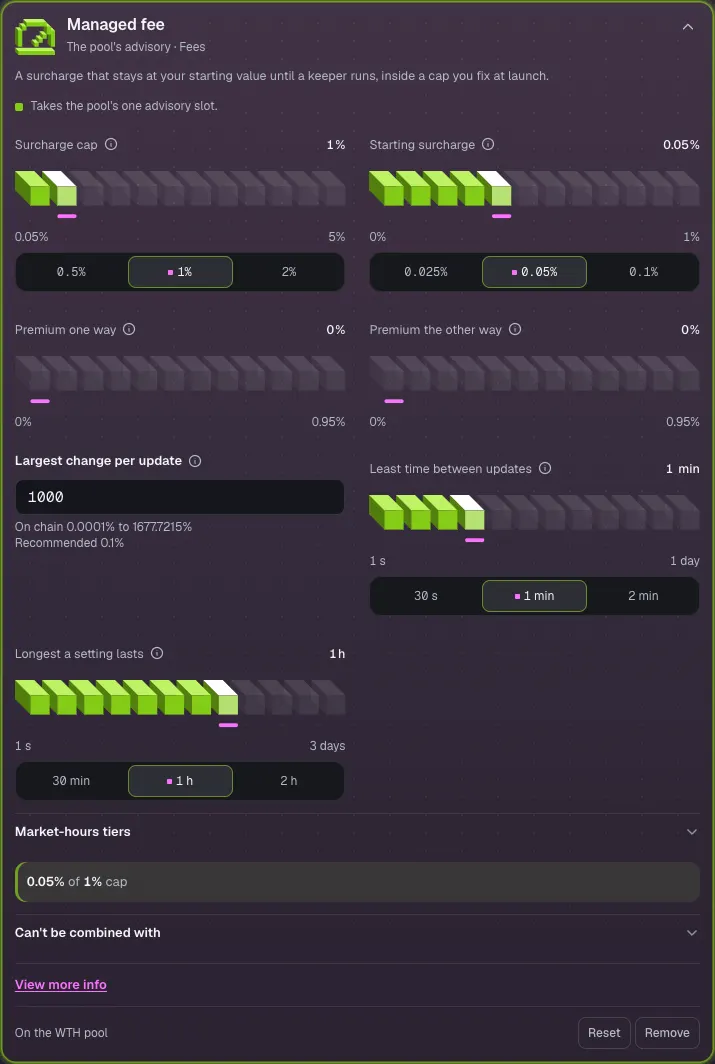
Check the desk surcharge
- Click Managed fee to open its settings.
- Check Surcharge cap 1% and Starting surcharge 0.05%. No keeper runs today, so the surcharge stays at its starting value.
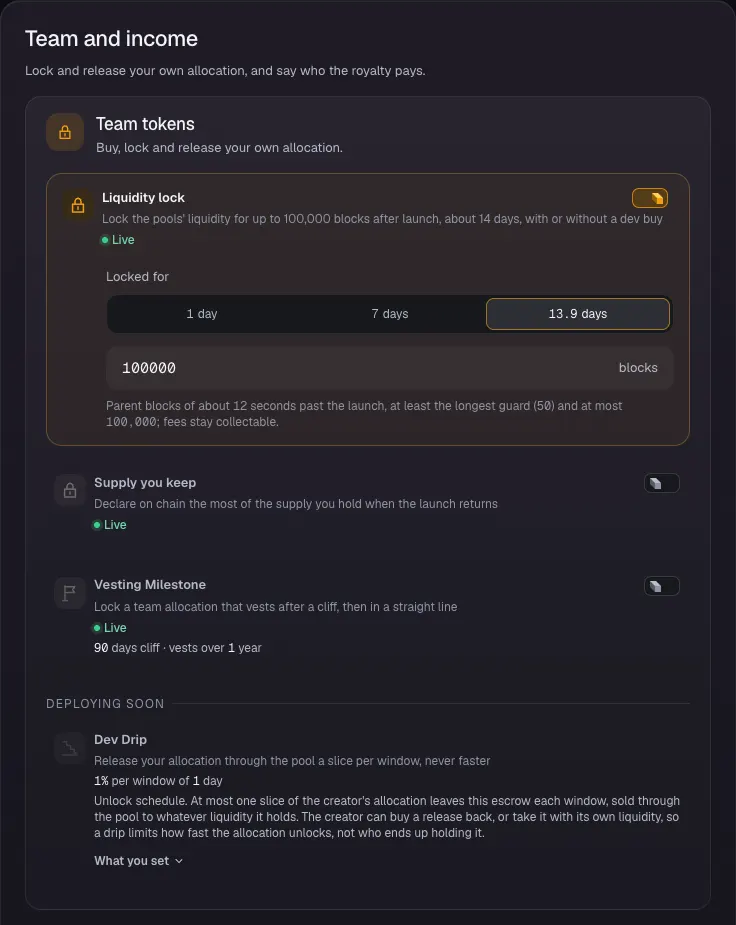
Lock the liquidity
- Open 4 Team and income.
- Turn on Liquidity lock and pick 13.9 days, so Locked for reads 100000 blocks.
- Leave Supply you keep and Vesting Milestone off. Dev Drip is deploying soon.
Split the royalty among payees
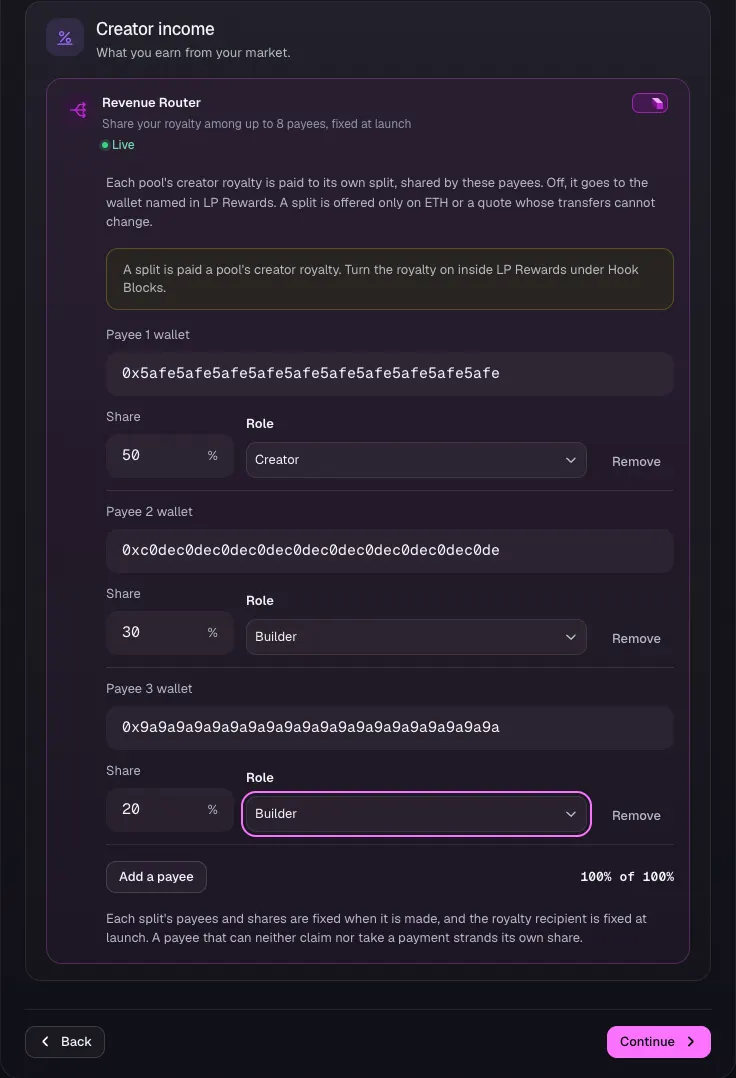
- Turn on Revenue Router.
- For each payee, type the wallet, the Share and pick the Role. Click Add a payee for more, up to 8. This example pays a treasury 50% as Creator and two contributor wallets 30% and 20% as Builder.
- Check that the shares read 100% of 100%, then click Continue.
Review the launch
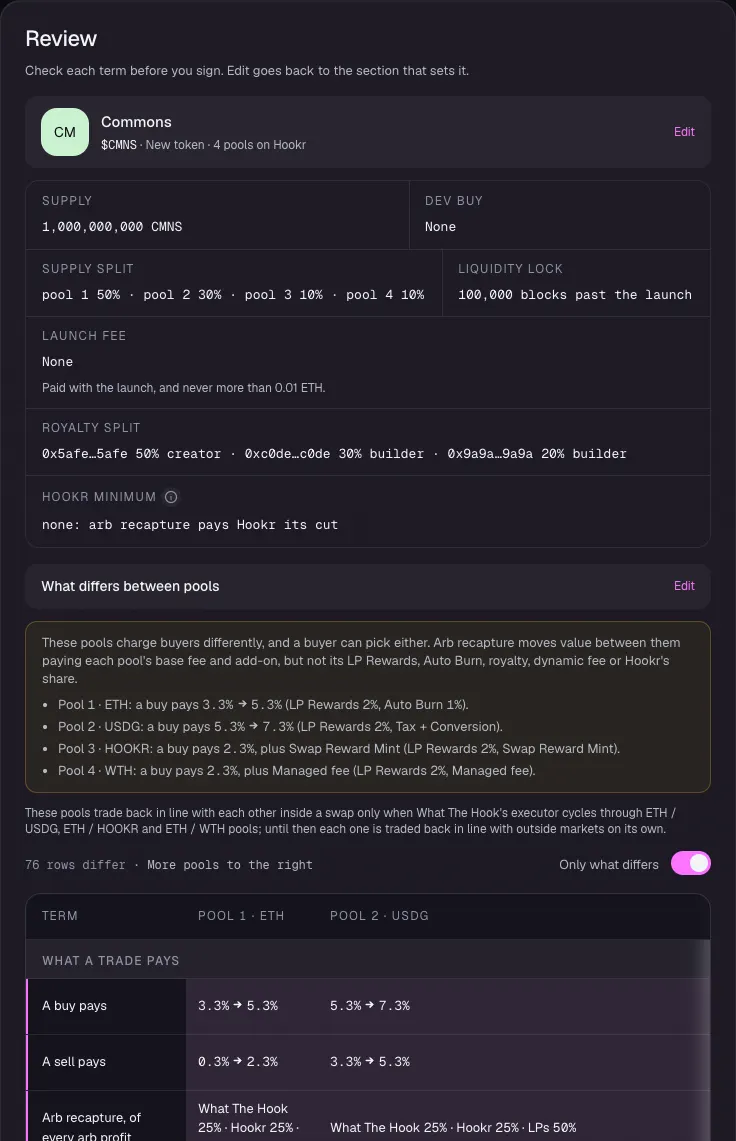
- In 5 Review, check Supply split pool 1 50% · pool 2 30% · pool 3 10% · pool 4 10%, Liquidity lock 100,000 blocks past the launch and the Royalty split payees.
- Under What differs between pools, check that USDG adds Tax + Conversion, HOOKR adds Swap Reward Mint and WTH adds Managed fee.
Compare the pools
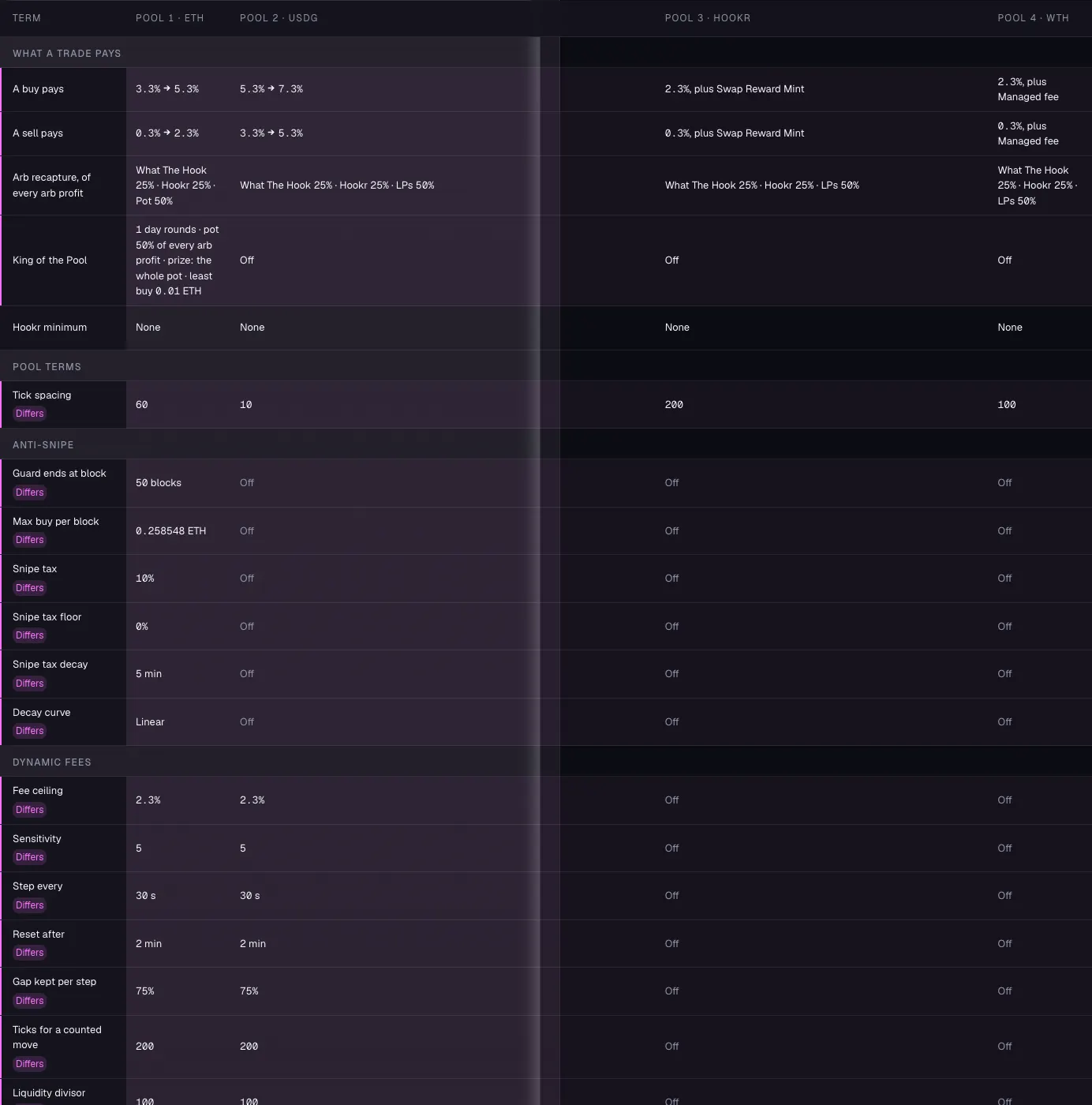
- In the pools table, check tick spacing 60, 10, 200 and 100, and King of the Pool on ETH only.
Clear the fix list and launch
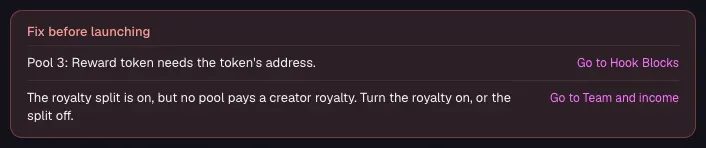
- Fix before launching lists the reward token and the royalty until both are set.
- Connect your wallet, turn on Creator royalty on pool 1, name the reward token, deploy its reward program on Review, then sign. This walkthrough stops before the wallet.
- After launch, fund the Recovery reserve from the pool page. Floor bid is deploying soon.